Online invigilation and safe exam browser
QpercomQpercom is used to conduct virtual interviews and assessments and for the verification of portfolio evidence.
Find out how to use Qpercom with your device and internet browser.
Online invigilation
For added security during the interview you may be asked by the lead recruiter to setup a second camera. This ensures the integrity of the process by providing a wider view of your environment.
Setting up the second camera
A smartphone or tablet works best as the second camera, this device must be capable of scanning a QR code. When carrying out the diagnostics test for your interview, you will be presented with a QR code, you will need to scan this with your smartphone or tablet.
Positioning the second camera
Placement
Position it at an angle behind and slightly to the side so that the invigilator can see:
- Your screen/s
- Your hands and workspace
- The surrounding area to confirm no unauthorised materials or people are present
- Position yourself near a surface like a shelf or table that can hold your second camera device
Height
Ideally at shoulder level or slightly higher for a clear view.
Distance
About 1 to 2 metres away to capture the full setup.
Connectivity
Ensure the second device is not in low power or sleep mode during the assessment. You will need to have a stable internet connection and connect your second camera device to the same WiFi as your primary device.
How to setup a second camera
Step by step guide
- Step 1 – Run diagnostic tool
- The lead recruiter will alert you when you can access the diagnostic tool. Open the tool, you will need to follow the steps until you reach the ‘check your video’ screen and you will be presented with a QR code to link to your second camera
- Step 2 – Scan QR code and position second camera
- Use your smart device to scan the QR code. Click ‘Activate browser screen awake’ to ensure your device does not go into sleep mode. Then place the device behind and slightly to the side so the administrator can clearly see your workstation and screen/s
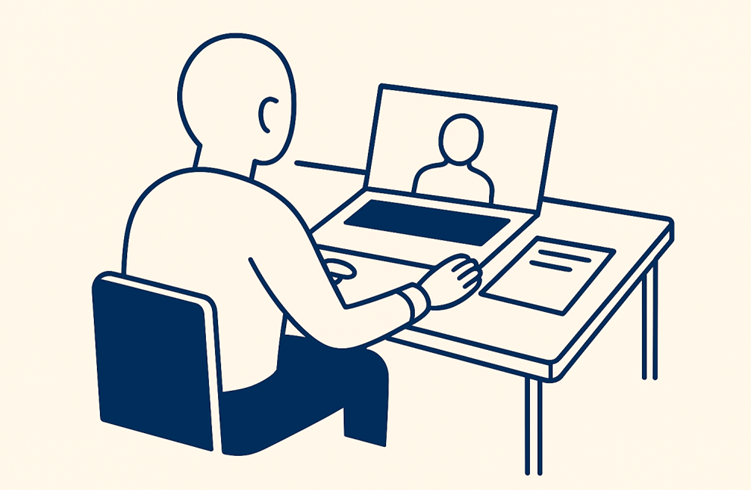
How to scan a QR code
Use your camera app
- Most modern smartphones (iOS and Android) can scan QR codes directly from the camera
- Open the camera, point it at the QR code and wait for a link or prompt to appear
Use built-in QR scanner
- On iPhone: Control centre, then QR code scanner
- On Android: Often in the camera app or Google Lens
Use a QR code app
If your device doesn’t support scanning, download a trusted QR scanner.
What if I can’t connect my device?
Ensure your device has the capability to scan QR codes, some smartphones do not. Test your device can scan a QR code here by scanning the code below.
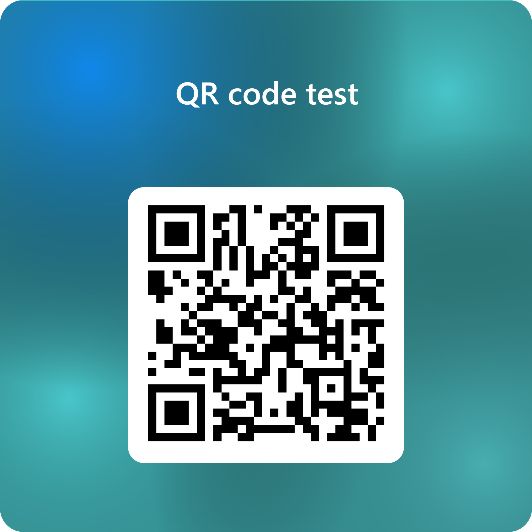
- Make sure your camera app or QR app is up to date, if not update the software
- If the default camera doesn’t work, use Google Lens or a dedicated QR app
What if my camera feed is not being picked up and showing on the diagnostic tool?
This could be a browser setting blocking your camera feed
If using Chrome or Edge:
- Click the lock icon in the address bar
- Ensure camera is set to allow
- If blocked, change to allow and refresh the page
If using Firefox:
- Click the camera icon in the address bar
- Grant permission for the site
If using Safari on iPhone:
- Go to URL bar
- Click on reader view icon
- Click on three dots
- Under website settings ensure camera is set to allow
Safe Exam Browser (SEB)
You will be notified by the lead recruiter if downloading SEB is required for your interview.
What is Safe Exam Browser?
Safe Exam Browser (SEB) is an open-source application designed to create a secure and controlled environment for online interviews/assessments.
It locks down your computer, restricting access to other applications, websites and system function while the assessment is running. Essentially turns your device into a dedicated exam terminal for the duration of the interview/assessment.
How do I download it?
Watch the video: Safe Exam Browser for Windows OS for how to download on a device with Windows OS.
Watch the video: Safe Exam Browser for MacOS for how to download on a device with Mac OS.
Who do I contact if I experience issues with the system?
You should contact the lead recruiter for the specialty/programme which you are applying for support.
Page last reviewed: 19 December 2025
Next review due: 19 December 2027